Video Tools
How to Choose an AI Shorts Caption Generator That Fits Your Workflow
Choose an ai shorts caption generator with better transcript accuracy, timing controls, exports, and safe-zone caption placement.
An ai shorts caption generator sounds like a tiny tool until you are posting daily shorts, Reels, and TikToks from the same recording. Pick the wrong one and you spend the saved time fixing bad line breaks, weird timing, and captions that fight the video instead of helping it.
Start with the job the caption tool has to do. A creator clipping one podcast into ten vertical videos needs different controls from a coach recording quick phone videos, and both need a way to review the transcript before anything goes live.
| What you see | Likely cause | First move |
|---|---|---|
| Captions lag behind speech | Auto timing was not checked after upload | Use a timeline editor before export |
| Words break in odd places | The style preset is built for looks, not readability | Shorten each caption block and widen the safe area |
| Brand terms are misspelled | The transcript model guesses unfamiliar names | Add manual corrections before styling |
| Captions cover faces or UI | The tool ignores platform safe zones | Move captions higher or use a template with margins |
| Exports look soft | The free plan or browser export compresses the clip | Check resolution and watermark rules before committing |
What an AI Shorts Caption Generator Should Do
Look past the flashy caption templates first. A useful generator should transcribe cleanly, sync words to the audio, let you edit the transcript, and export a vertical video without making the file harder to publish.
Honestly, most weak tools fail in the review step. They make captions fast, then hide the timeline controls you need when a name, product term, or punchline lands wrong.
Match the Tool to the Kind of Shorts You Publish
Podcast clips need speaker-aware captions, strong waveform timing, and quick clipping from long videos. Talking-head creators usually care more about clean templates, face-safe placement, and a fast mobile workflow.
Product educators and course creators should care about accuracy more than animation. If a caption misstates a feature, a price, or a step, the video starts creating support problems instead of leads.
Faceless channels have another wrinkle. Captions often carry the pace of the whole video, so you need word-by-word highlighting, pause control, and a way to keep subtitles away from generated b-roll, lower thirds, or screen recordings.
Use a Five-Minute Test Before You Pay
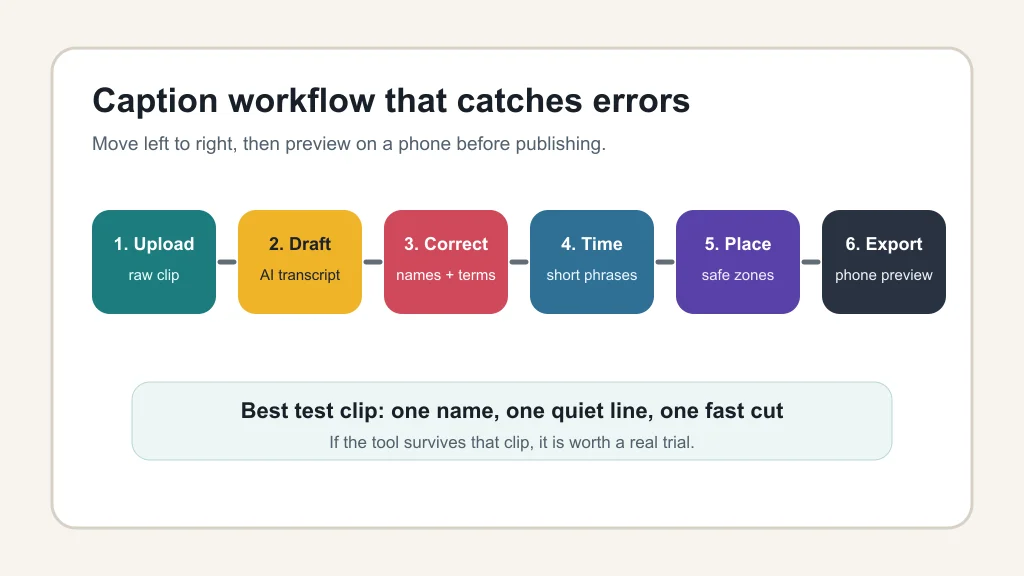
Upload one messy clip before judging any caption app. Choose a sample with a quick intro, one proper noun, one quiet sentence, and one moment where the speaker talks over a sound effect.
Then check four things in order: transcript accuracy, timing, layout, and export quality. That order matters because beautiful captions with wrong words are still wrong.
Workflow: From Raw Clip to Publishable Captions
A practical caption workflow starts before the tool touches the file. Trim obvious dead air, normalize audio if needed, and decide whether the caption style should feel quiet, punchy, educational, or meme-driven.
- Upload or import the clip. Use direct upload for private drafts and a platform link when the tool supports it cleanly.
- Generate the transcript. Let the AI create the first pass, but do not style it yet.
- Correct the words. Fix names, product terms, numbers, and anything that changes meaning.
- Set the rhythm. Break captions into short phrases that can be read before the next cut.
- Check the frame. Keep captions away from faces, hands, product demos, platform buttons, and burned-in graphics.
- Export and preview. Watch the final file on a phone, not only in a desktop browser.
Platforms and tools keep improving, but this review habit stays useful. You catch the mistakes viewers notice before the comments do.
Good Caption Tools Versus Good Clipping Tools
Some creator apps focus on captions. Others focus on finding highlight clips from long videos, then add captions as part of the package. Neither approach is automatically better.
Choose a pure caption tool when you already know which short you want to publish. Choose a clipping-first tool when the hard part is finding the best moments inside a webinar, podcast, livestream, or long YouTube upload.
OpusClip, for example, positions its auto caption tool around importing a video, generating captions, reviewing and editing them, then downloading or publishing the finished result. That is a useful workflow model to compare against, even if you end up using a different app.
Accessibility, Disclosure, and Trust Checks
Captions help viewers who watch without sound, viewers who need text support, and anyone scrolling in a noisy room. That does not mean every generated caption is accessible by default.
Readable captions need contrast, sane line length, accurate punctuation, and enough screen time. Fast animated words can work for entertainment clips, but they are often a bad fit for tutorials, legal explanations, health content, finance topics, or anything where the viewer may need to pause and read.
YouTube's AI disclosure guidance also matters. Its help page lists caption creation as a form of minor production assistance that creators do not need to disclose by itself, while realistic altered or synthetic content may require disclosure. That distinction is useful, but it does not replace your own judgment when a video changes what viewers think happened.
Pricing Traps to Check Before You Commit
Free caption tools are fine for testing, but read the export limits closely. Common catches include watermarks, capped resolution, limited minutes, missing SRT or VTT downloads, fewer brand presets, and no batch processing.
Pay only when the tool removes a real bottleneck. If you post three clips a week, a simple editor may be enough. If you publish every day across YouTube Shorts, TikTok, Instagram, and LinkedIn, batch workflows and reusable templates can save real production time.
Where Captions Fit in a Broader Creator Stack
Captions rarely work alone. A short-form workflow may start with AI scriptwriting tools, move into a short-form AI video generator stack, and finish with an AI social media caption tools pass for the post copy.
Creators repurposing long content should compare a solo creator repurposing workflow, Instagram repurposing tools, an AI clip generator for TikTok, and a guide on how to turn a podcast into reels. Those decisions change what caption tool feels fast.
Video-heavy channels may also need AI video background removers, AI avatar video tools, or a faceless YouTube tool stack. Voice-first creators should look at an AI voice changer workflow, AI dubbing tools for YouTube, and a podcast creator AI tool stack.
Polish comes from the smaller tools around the video too. Compare Canva AI vs Adobe Express, use AI YouTube title generators when titles are dragging, test AI thumbnail A/B testing tools, and keep music choices clean with a copyright-safe AI music generator.
For comparison shopping, keep an eye on Runway vs Pika for creators and OpusClip alternatives. Course creators can also pair captions with AI course outline generators when turning teaching clips into structured lessons.
Quick Checklist
- Test one messy vertical clip before choosing a caption app.
- Fix transcript errors before applying animated styles.
- Keep captions inside platform safe zones and away from faces.
- Confirm export resolution, watermark rules, and minute limits.
- Check whether SRT, VTT, or transcript export matters for your workflow.
- Preview the final clip on a phone before publishing.
- Use AI disclosure when the video meaningfully alters realistic people, places, or events.
Frequently Asked Questions
what is the best ai shorts caption generator?
The best option is the one that fits your publishing workflow, not just the one with the loudest templates. Test accuracy, timing controls, safe-zone placement, export quality, and pricing limits before you pay.
can ai generate captions for youtube shorts?
Yes. Many AI caption tools can generate captions for vertical YouTube Shorts, then let you edit the transcript and export a burned-in video or subtitle file depending on the product.
are ai captions accurate enough for short videos?
They can be close, especially with clear speech, but you should still review the transcript. Names, slang, brand terms, accents, music, and overlapping speakers are where errors usually slip in.
do i need to disclose ai captions on youtube?
Caption creation alone is listed by YouTube as minor production assistance that does not need disclosure. If the video also uses realistic altered or synthetic content, check YouTube's disclosure guidance before publishing.
should i use burned-in captions or subtitle files?
Use burned-in captions when the caption style is part of the short-form edit. Use subtitle files when accessibility, searchability, translation, or later correction matters more than visual style.
Final Take
Pick the caption generator that gives you control after the AI does the first pass. Speed is nice, but the tool earns its place when you can fix the words, protect readability, export cleanly, and publish without second-guessing the clip.
Official sources: YouTube altered or synthetic content disclosure · OpusClip Auto Caption Generator. Check current program pages before applying.