Video Tools
The Creator's Guide to AI Video Background Removers
Compare ai video background remover tools for creator videos, clean masks, Canva Pro, Adobe Express, VEED, exports, and workflow fit.
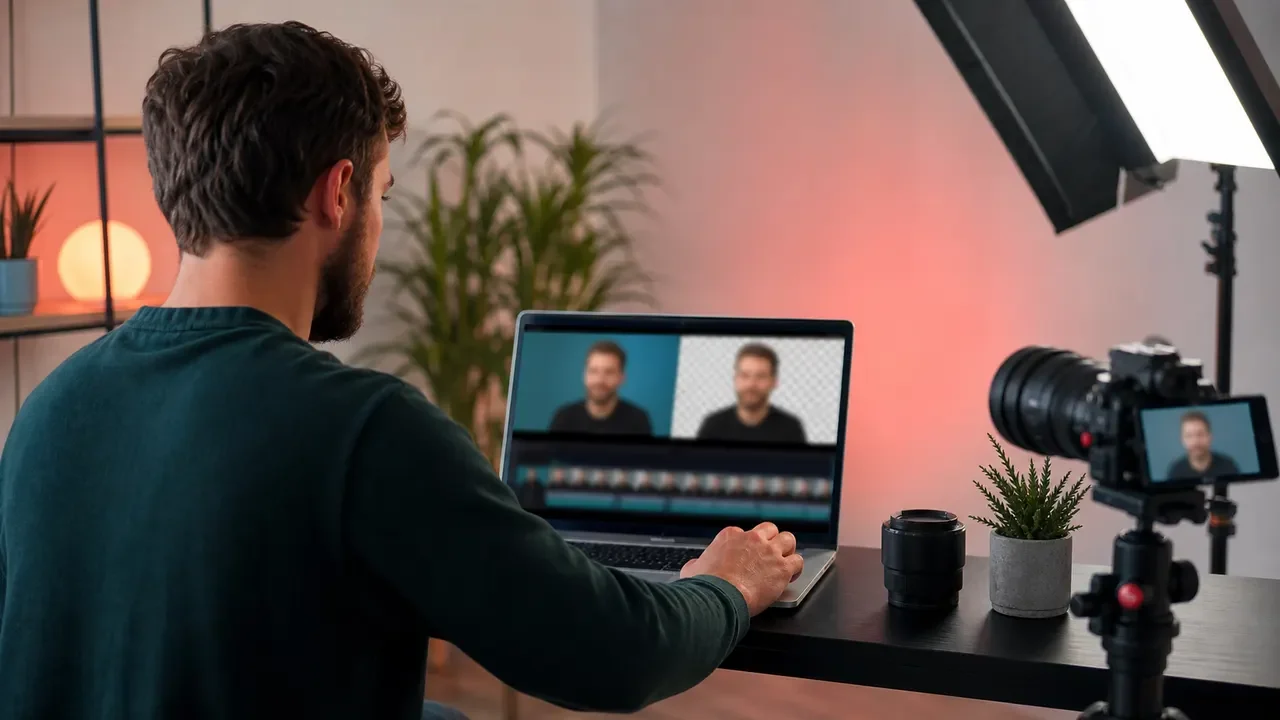
If you are comparing ai video background remover tools, start with the footage you actually shoot, not the splashiest demo on a pricing page. A talking-head YouTube intro, a Reel filmed in a cafe, and a product tutorial with moving hands all stress the software in different ways.
Background removal looks simple when the subject stands still. It gets messy around hair, glasses, motion blur, microphones, chair backs, and low-light footage, which is exactly where creators need the tool to earn its keep.
| What you see | Likely cause | First move |
|---|---|---|
| Flickering edges around hair or hands | The subject is moving faster than the mask can track | Test a five-second clip before editing the whole video |
| Transparent gaps through glasses or a microphone arm | The model is confusing thin objects with the background | Try a cleaner background or keep the original scene softly blurred |
| Subject looks pasted onto the new scene | Lighting and shadow do not match the replacement background | Use a plain brand color or subtle gradient instead of a busy image |
| Export looks soft on Shorts or Reels | The tool compressed the clip or resized it badly | Check export resolution, frame rate, and watermark rules before committing |
How to Compare AI Video Background Remover Tools
Judge the remover on the finished clip, not the marketing claim. Adobe Express says its remover can turn a video background transparent and continue editing or downloading the result, while Canva frames its video background remover as a Canva Pro feature built around upload, one-click removal, and MP4 export.
VEED takes a similar creator-friendly angle: upload the clip, select the background remover, replace the scene, and keep editing with captions or other video tools. None of that means every clip will look good. It means the workflow is accessible enough that your main test becomes quality, control, and output rights.
Best Fit by Creator Workflow
Canva makes the most sense when the final asset is a social post, ad creative, thumbnail-adjacent video, or quick branded clip. It is strong when you already build designs in Canva and want the removed subject dropped into templates, background colors, stock imagery, or a campaign layout.
Adobe Express fits creators who want a fast remove-and-replace path with Adobe Stock assets and an editor that can keep the clip inside a broader content workflow. If you already use Photoshop, Premiere, or other Adobe tools, Express can be the lighter front door for simple social edits.
VEED is more useful when the background change is only one step in a talking-head production workflow. Captions, browser recording, cleanup, format changes, and simple exports matter if you publish a lot of explainers, course clips, podcast cuts, or founder videos.
Unscreen and similar dedicated removers can still be useful for quick transparent clips or GIF-style assets. I would treat them as single-job utilities rather than full production hubs unless their export limits and quality match your publishing routine.
What the Mask Has to Survive
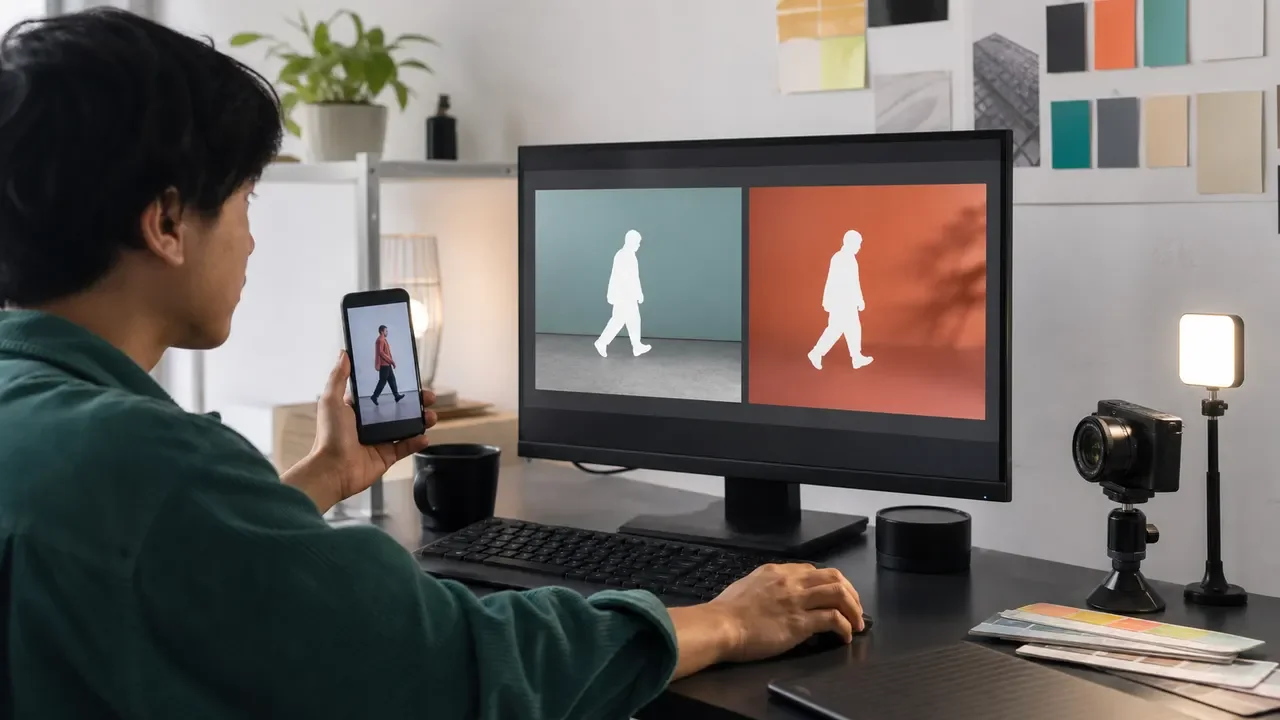
Creators usually notice background remover problems after export. That is late. Pull a rough test from the hardest part of the clip first: hair against a bright wall, a hand crossing the face, a chair edge, a boom mic, or a fast turn toward the camera.
Look at the subject at the size viewers will actually see. A tiny edge shimmer may disappear in a TikTok feed but look sloppy in a 4K YouTube tutorial. On the other hand, a perfect mask is wasted effort if the clip is only a three-second B-roll insert.
Export, Rights, and Platform Fit
Do not choose a tool until you know what it exports. Check whether free exports include a watermark, whether the remover is locked behind a paid plan, whether the clip downloads as MP4 or transparent video, and whether the resolution is good enough for your channel.
Transparent video is not always the best answer. Many social clips only need the old background replaced with a clean scene, a brand color, or a blurred set. If you need to composite the subject later in a pro editor, transparent export and alpha handling become much more important.
Also check upload limits. Long podcast clips, 4K camera files, and high-frame-rate footage can break the quick online workflow. For big projects, a browser tool may be best for first drafts while your final assembly stays in a desktop editor.
Where It Fits in a Creator Stack
Background removal rarely lives alone. A faceless channel may pair it with AI avatar video tools, while a Shorts-heavy creator may need the best AI video generator stack for short-form creators around it.
Repurposing teams should connect the remover to AI Instagram repurposing tools, a broader solo creator repurposing workflow, or an AI reel generator from podcast when long recordings become clips.
YouTube creators may need background removal for intros, sponsor reads, or lesson segments, but the surrounding stack matters too. Pair it with AI scriptwriting tools, AI YouTube title generator tools, and AI thumbnail AB testing tools if the goal is a full publishing workflow.
Audio and compliance can matter just as much as the visual edit. If your clip uses synthetic voices or music, review copyright-safe AI music generators, AI voice changers for creators, AI dubbing tools for YouTube, and AI voice cloning disclosure on YouTube.
Tool comparisons also help when your workflow is more complex than a single background swap. See Canva AI vs Adobe Express, Runway vs Pika for creators, and Opus Clip alternatives before you lock into one editing system.
For adjacent creator jobs, background removal may be only a small step. Course builders can use AI course outline generators, social teams can tighten copy with AI social media caption tools, TikTok editors can compare an AI clip generator for TikTok creators, and podcasters can build a cleaner pipeline with an AI podcast clip generator.
Quick Buying Shortlist
Pick Canva when design speed and brand layouts matter more than deep video control. Pick Adobe Express when you want a simple remove-replace-edit path with Adobe assets nearby. Pick VEED when talking-head video, captions, browser editing, and social exports all happen in the same session.
Honestly, most creator roundups skip the boring part: testing your own footage. Spend ten minutes on that and you will learn more than you will from another generic top-ten list.
Quick Checklist
- Test the hardest five seconds of footage before uploading the whole clip.
- Check whether the remover is free, paid, trial-based, or tied to a Pro plan.
- Export a short sample and inspect hair, hands, glasses, microphones, and chair edges.
- Confirm resolution, watermark, file format, and social platform size before editing a full batch.
- Use simple backgrounds when the mask is imperfect or the clip will move fast.
- Keep brand colors, lighting, and subject scale consistent across recurring videos.
- Save the original clip so you can rebuild the edit if the online tool changes its export settings.
Final Take
The best background remover is the one that survives your real production habits. If you publish quick social clips, Canva or Adobe Express may be enough. If background removal is part of a heavier video pipeline, VEED or a dedicated editor can save more time because the next steps are already nearby.
Frequently Asked Questions
what is the best ai video background remover?
For most creators, the best choice depends on workflow. Canva is strong for design-first social content, Adobe Express is good for quick remove-and-replace edits, and VEED is practical when captions, recording, and browser editing matter too.
can ai remove video background without green screen?
Yes. Modern tools can isolate a subject without a green screen, but the result depends on lighting, motion, subject contrast, and edge detail. A green screen still helps when you need cleaner separation.
is Canva video background remover free?
Canva presents its video background remover as a Canva Pro feature on its official feature page. Check Canva's current plan page before relying on it for unpaid production work because plan details can change.
how do I remove a video background online?
Upload the video, select the clip, choose the background remover or magic tool, wait for the mask, add a replacement background if needed, then export a short test before producing the final version.
do video background removers work for YouTube Shorts?
They can work well for Shorts, especially talking-head clips with a clear subject. Test vertical export quality, subtitle placement, and edge flicker on a phone before publishing.
Official sources: AI Video Background Remover · Online Video Background Remover. Check current program pages before applying.