Creator Workflows
AI Instagram Repurposing Tools Creators Actually Need
Compare ai content repurposing tools for instagram by workflow, source format, review steps, and where automation saves creator time.

If you are comparing ai content repurposing tools for instagram, start with the bottleneck, not the tool list. Some creators need better clips from long videos. Others need carousels, captions, Stories, or a cleaner way to move finished posts between channels.
Instagram repurposing works best when AI handles sorting, resizing, drafting, and caption cleanup while you keep control of the final hook and point of view. That split matters because a fast workflow can still publish forgettable content if nobody edits the last mile.
| What you see | Likely cause | First move |
|---|---|---|
| Lots of clips, few saves | The AI picked energetic moments, not useful ideas | Filter clips by promise, proof, and payoff before posting |
| Reels feel cropped badly | The source video was not framed for vertical output | Use a reframe pass, then check faces, hands, and captions manually |
| Captions sound generic | The tool copied the transcript too literally | Rewrite the first line and CTA in your normal voice |
| Too many formats to manage | You are repurposing every asset instead of the best assets | Pick one weekly anchor and build a small Instagram set from it |
| Posts publish with small mistakes | Automation skipped a final brand and fact check | Add an approval step before scheduling or auto publishing |
What Instagram repurposing tools should actually do
Good repurposing software does not magically create a strategy. It turns one strong source into usable Instagram drafts faster than you could do it by hand.
For video creators, that usually means finding the best moments, cutting vertical clips, adding captions, reframing the shot, and exporting in a format that works for Reels. For educators, coaches, and newsletter creators, it often means turning an idea into carousel slides, short captions, quote graphics, and Story prompts.
Ask one question before you trial anything: what will this tool remove from my week? If the answer is vague, you are probably shopping from feature fatigue.
How ai content repurposing tools for instagram fit the workflow
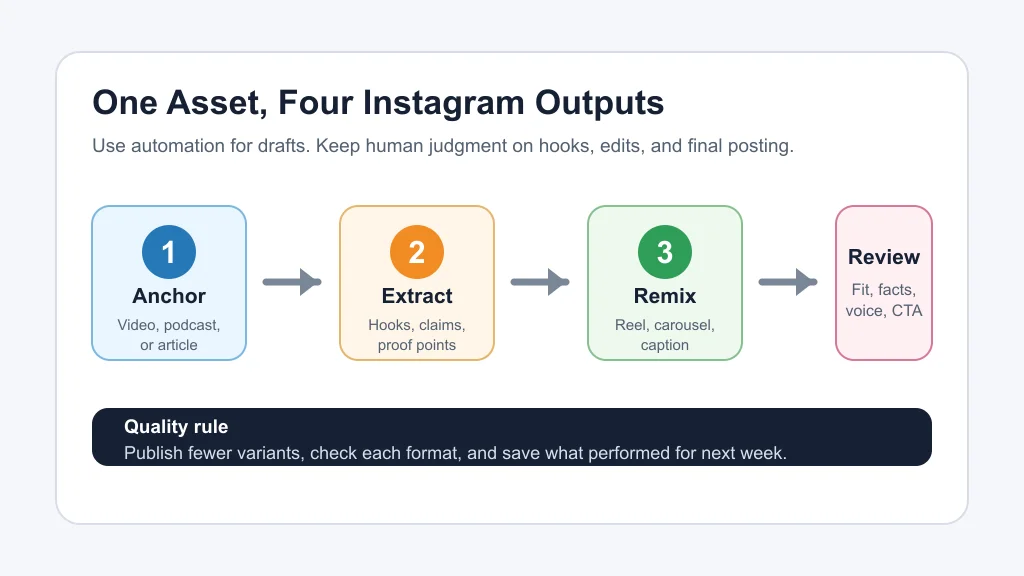
Think of the workflow in four passes: capture, extract, remix, and review. AI is strongest in the middle two passes, where it can scan a transcript, suggest hooks, split clips, resize creative, and draft captions.
Your job sits at the edges. Choose better source material at the start. Then review the output before it reaches Instagram. I have seen the workflow fall apart when creators treat the AI draft as the finished post, especially with clips that lose context once they are separated from the original video.
Start with one anchor asset per week. A podcast episode, YouTube video, webinar, newsletter, tutorial, or livestream can become a small Instagram package: two Reels, one carousel, three caption angles, and a Story prompt. That is enough to test the idea without flooding your feed.
The main tool types and when to use each one
Clip generators are the best fit when your source is long-form video or audio. Tools in this group scan a transcript, identify moments, create short clips, add captions, and often reframe the video for vertical viewing. OpusClip is a common example for creators who want long videos turned into Shorts, Reels, and TikTok-style clips.
Distribution tools are different. Repurpose.io is built around workflows that move content between platforms, resize assets, remove watermarks where supported, and schedule or publish posts. That matters if your problem is not editing. It is the repeated manual work after editing.
Design tools are better for static and mixed-format repurposing. Canva, Adobe Express, and similar editors help you turn a newsletter section, lesson, or talking point into carousels, quote posts, thumbnails, and simple promotional graphics. They are less magical, but often more useful for creators whose Instagram audience saves educational posts.
Caption and writing tools fill the gaps. They can draft alternate hooks, rewrite a long idea for a shorter caption, or create a carousel outline. Use them after you know the angle, not before. Otherwise you get polished sameness.
Choose by source format, not by brand name
Long video needs different software than a newsletter. A talking-head creator needs good reframing and captions. A podcast host needs transcript-aware clip selection. A course creator may need clean slides, carousels, and short lesson summaries.
Use this quick decision path:
- Podcast or interview: choose a clip generator with transcript search, speaker detection, and editable captions.
- YouTube tutorial: choose a tool that keeps context, supports vertical reframing, and lets you trim technical setup time.
- Newsletter or blog: choose a writing and design workflow that turns one argument into carousel slides and caption variants.
- Existing TikToks or Shorts: choose a distribution workflow that can move approved videos to Reels without repetitive uploads.
- Product education: choose a design-first workflow so the final asset is easy to read, save, and share.
Honestly, most bad tool choices happen because a creator buys a video clipping tool when the real need is editorial planning. If your source ideas are weak, faster clipping just creates more weak clips.
What to check before you schedule anything
Instagram is a visual platform, so format mistakes are obvious. Check the opening frame, safe zones, captions, cropped faces, product shots, and whether the post makes sense without the original context.
Do not let automation write every caption in the same voice. A useful caption can explain the clip, add a counterpoint, invite a reply, or send people to a deeper resource. A generic caption repeats the video and wastes the space.
Fact checks matter too. If a clip mentions pricing, platform rules, product limits, or dates, verify the current source before publishing. Tool pages and platform requirements change, and old drafts can become wrong quietly.
A practical stack for different creator styles
Solo video creators should start small: one clip generator, one design tool, and one scheduler. Use the clipping tool for Reels, the design tool for carousels, and the scheduler for batching. The repurposing workflow for solo creators is a useful companion when you want a lean system instead of a bloated stack.
Podcast creators need a slightly different stack. Pair a transcript-aware clip tool with a workflow that turns each episode into a few quote cards, one carousel, and a short teaser. Our guide to an AI podcast clip generator goes deeper on preserving context when cutting long conversations into short posts.
Newsletter creators can get more from planning and rewriting than from video automation. A strong issue can become a carousel, a short Reel script, and several caption angles. For that path, see the AI newsletter repurposing workflow and the broader AI content calendar generator for creators guide.
Short-form creators should care most about fit. If TikTok is the source, check the AI clip generator guide for TikTok creators. If YouTube Shorts is the main output, compare it with the AI video generator stack for short-form creators.
Do not automate away your taste
AI can find a loud moment. It cannot always tell whether that moment represents your best idea. That is where your taste still matters.
Look for posts that carry a full thought. A good Instagram repurpose should have a clear promise, a fast payoff, and one reason to save or share. It should not feel like a random excerpt cut from a longer piece.
Keep a weekly reject folder. Save clips and captions you almost posted, then write down why you held them back. Patterns appear quickly: weak openings, missing proof, too much setup, or the wrong format for the idea.
Related creator workflows worth connecting
Instagram repurposing rarely lives alone. If the source starts with a script, compare AI scriptwriting tools for creators. If the output needs stronger caption options, read the guide to AI social media caption tools.
Video-heavy creators may also need Opus Clip alternatives, Runway vs Pika for creator workflows, or faceless YouTube video tools when the same source asset feeds multiple channels.
Audio and voice workflows bring their own checks. Review AI voice changers for creators, AI dubbing tools for YouTube, AI voice cloning disclosure on YouTube, and copyright-safe AI music generators before turning voice-led content into social assets.
Design and packaging still count. Compare Canva AI vs Adobe Express, tighten discovery assets with AI thumbnail AB testing tools, turn lessons into better modules with AI course outline generators, and use AI YouTube title tools when the Instagram clip points back to a longer video.
For one source becoming one Reel, the companion guide on how to turn a podcast into Reels with AI is the closest match.
Quick Checklist
- Pick one strong source asset before opening any repurposing tool.
- Choose a tool based on source format: video, podcast, newsletter, carousel, or static post.
- Review the first three seconds of every Reel before scheduling.
- Rewrite AI captions so the opening line sounds like you.
- Check crop, captions, safe zones, and readability on a phone-sized preview.
- Verify current platform or tool details when a post mentions specs, limits, or pricing.
- Track saves, shares, profile visits, and comments so next week's repurposing is sharper.
Bottom line
The best Instagram repurposing setup is usually smaller than the tool roundups make it look. Pick one anchor asset, use AI to draft the formats, then spend your energy on the hook, context, and final review.
Creators who win with repurposing do not publish the most variants. They publish the cleanest versions of ideas their audience already wants to save, share, or reply to.
Official sources: Instagram Help Center: Reel size and aspect ratios · Repurpose.io product and pricing page.
Frequently Asked Questions
what is the best ai content repurposing tool for instagram
For long video, start with a clipping tool such as OpusClip or a distribution tool such as Repurpose.io. For carousels and quote posts, Canva or Adobe Express usually makes more sense. The best choice depends on your source format, not the loudest feature list.
can ai turn youtube videos into instagram reels
Yes, many tools can turn YouTube videos, podcasts, and webinars into vertical clips. You still need to review the hook, crop, captions, context, and call to action before publishing.
are ai repurposing tools worth it for small instagram accounts
They can be worth it if they save editing time and help you post consistently. They are not worth it if they create generic clips that do not match your audience or brand voice.
should i auto publish ai generated reels to instagram
Auto publishing is useful for approved, repeatable formats. For new offers, sensitive topics, or creator-led opinions, schedule the draft but do a final manual review.
how many instagram posts can i make from one long video
A strong source video can usually become two to five Reels, one carousel, several captions, and a Story sequence. Stop when the idea gets thin.