Creator Workflows
How to Pick AI Course Outline Generators That Build Better Lessons
Choose ai course outline generator tools by workflow fit, learning outcomes, and review steps before building your creator course.

Good ai course outline generator tools can turn a messy course idea into modules, lessons, and learning outcomes fast. The trick is knowing where to trust the draft, where to rewrite it, and where a general AI chat prompt is a better fit than a built-in course-platform feature.
Use this workflow when you already know the course topic but need a cleaner structure before recording, writing lessons, or building inside an LMS.
| What you see | Likely cause | First move |
|---|---|---|
| The outline has too many modules | The prompt described the topic, not the learner result | Rewrite the promise in one measurable sentence |
| Lessons feel repetitive | The tool is padding with adjacent concepts | Group lessons by learner task, not by subtopic |
| Beginner lessons jump too fast | Prerequisites were missing from the prompt | Add skill level, tools, and assumed knowledge |
| The plan looks polished but thin | The generator made a sales outline, not a teaching path | Add practice tasks, examples, and checkpoints |
| The outline does not fit your platform | The tool ignored lesson formats and course length | Set target modules, lesson duration, and delivery style |
What You Need Before You Generate Anything
Estimated time: 20 to 30 minutes.
- Write the course promise. Finish this sentence: "By the end, the learner can..." If the result is vague, the outline will be vague too.
- Name the learner's starting point. Include their skill level, tools they already have, and the mistake they keep making.
- Choose the container. Decide whether this is a 60-minute workshop, a four-week cohort, a self-paced mini-course, or a flagship course.
- List proof tasks. Add one practical assignment per module so the AI has to plan around actual learning, not just headings.
Step 1: Turn the Course Idea Into a Testable Prompt
Estimated time: 15 minutes.
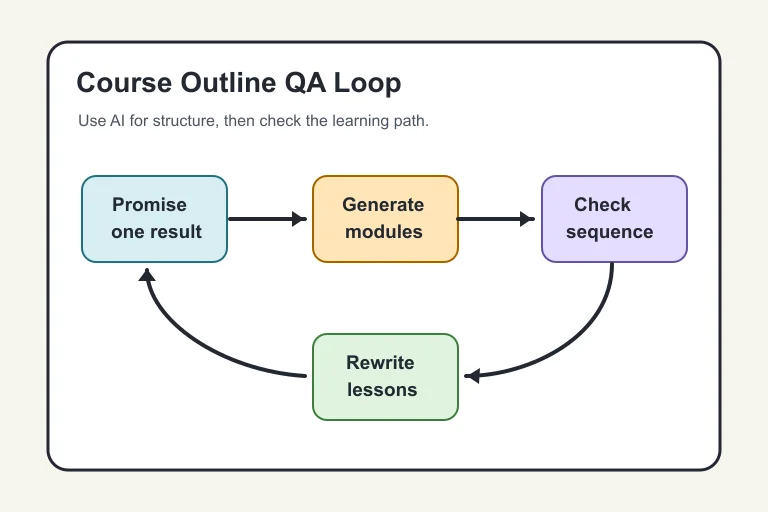
- Start with the result. Ask for an outline that helps a specific learner achieve one outcome, not "a course about" a broad topic.
- Add constraints. Tell the tool the course length, number of modules, lesson duration, learner level, platform format, and tone.
- Request outputs you can judge. Ask for module goals, lesson titles, practice tasks, and what the learner should be able to do after each section.
- Ban filler. Tell the generator to avoid generic intros, motivation-only lessons, and repeated "overview" modules unless they teach a concrete skill.
Prompt quality matters more than the brand on the button. A weak prompt gives you a neat-looking table that still needs a full rebuild.
Step 2: Test ai course outline generator tools against your course promise
Estimated time: 30 to 45 minutes.
- Run the same prompt in two places. Try one LMS-native generator, such as a course builder feature, and one general AI workspace where you can iterate.
- Score the first draft. Check whether every module moves the learner toward the promised result. Delete anything that only sounds impressive.
- Look for missing prerequisites. If module two assumes knowledge that was never taught, add a setup lesson or move that content later.
- Ask for a second pass. Tell the tool what failed, then request a tighter version with fewer lessons and stronger practice tasks.
Thinkific's support material describes its AI Course Outline Generator as a way to structure course content into chapters and lessons. Treat that as the first organizing pass, then do the teaching review yourself.
Step 3: Edit the Outline Like a Learning Path, Not a Content Calendar
Estimated time: 45 to 60 minutes.
- Check the first lesson. It should get the learner to a small win quickly, not spend ten minutes explaining why the topic matters.
- Map every module to a skill. Replace topic labels like "Marketing Basics" with task labels like "Write a launch email from a course promise."
- Add friction on purpose. Include short quizzes, worksheets, teardown prompts, or project checkpoints where the learner must apply the idea.
- Cut the expert detours. Move advanced context into bonus lessons unless beginners need it to complete the core project.
Good course structure has momentum. Learners should feel the course getting more useful because each lesson unlocks the next action.
Step 4: Choose the Right Tool Type for Your Workflow
Estimated time: 25 minutes.
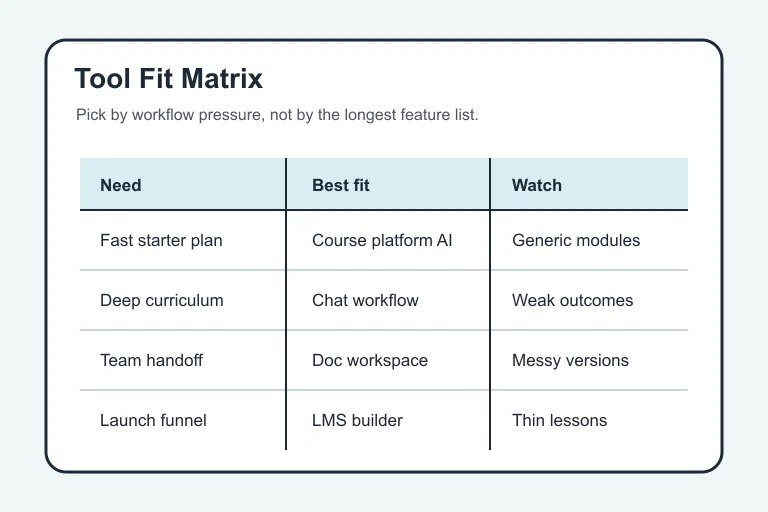
- Use an LMS generator for speed. Pick this when you want modules and lessons created directly where the course will live.
- Use a chat workspace for curriculum depth. Pick this when you need multiple rewrites, teaching examples, objections, assessments, and learner personas.
- Use a document workspace for teams. Pick this when an editor, instructor, VA, or video producer needs to comment on the outline before production.
- Use an automation setup only after the outline works. OpenAI's tools documentation is useful if you are building a custom workflow that retrieves files, calls functions, or connects course planning to other systems.
Step 5: Build the Production Brief From the Final Outline
Estimated time: 30 minutes.
- Write a lesson brief for each module. Include the learning goal, recording notes, assets needed, examples, and the student task.
- Mark content that needs proof. Flag legal, medical, financial, platform policy, or pricing claims for source review before recording.
- Separate teaching from marketing. Course pages, trailers, emails, and social posts can reuse the outline, but they should not decide the learning sequence.
- Lock the version. Save the approved outline before scripts, slides, or videos start. Version drift is where small courses become messy fast.
Once the brief is stable, the rest of your creator stack has a job to do. For example, a content calendar generator can plan the launch, while a newsletter repurposing workflow can turn lessons into email content.
Related Creator Workflows Worth Pairing With Your Outline
A course outline touches more than curriculum. These guides help once you move into launch assets, short-form clips, visuals, audio, and editing:
- thumbnail testing plan: Course launches still need packaging tests.
- dubbing workflow: Course lessons that become YouTube content may need dubbing.
- social caption tools: Promotion copy should come after the course promise is stable.
- Runway versus Pika comparison: Video-heavy course creators may need a generation tool later.
- Opus Clip alternatives: Lesson recordings can be clipped into previews.
- podcast clip generator workflow: Audio lessons can become short clips.
- voice cloning disclosure checks: Synthetic narration needs disclosure review.
- content calendar generator: Launch planning needs a publishing calendar.
- newsletter repurposing workflow: Course material can become newsletter lessons.
- AI B-roll planning: Video lessons often need relevant cutaways.
- AI thumbnail tools: YouTube course previews need thumbnails.
- image generator rights checks: Course visuals need rights review.
- newsletter creator AI stack: Newsletter creators often package courses from existing expertise.
- Instagram Reels caption workflow: Short-form launch content needs human captions.
- AI voice tool alternatives: Narrated courses need voice rights clarity.
- Descript alternatives: Editing choice depends on the lesson format.
- CapCut versus Descript: Pick the editor after you know the lesson style.
- AI Shorts repurposing workflow: Long lessons can feed short-form discovery.
- YouTube thumbnail generator guide: Course trailers need clear creative direction.
- free creator AI tools: Free plans are useful for early testing.
Quick Checklist
- Define one learner outcome before opening any generator.
- Give the tool learner level, course length, lesson format, and constraints.
- Compare at least two draft outlines before choosing a structure.
- Replace topic labels with skill-based lesson titles.
- Add practice tasks, checkpoints, or examples to every module.
- Review tool outputs against official platform docs when using built-in LMS features.
- Lock the final outline before scripts, slides, and launch assets begin.
Final Take
AI can get you unstuck, but it cannot decide what your course should teach. Use the generator for speed, then judge the draft against the promise, the learner's starting point, and the proof task at the end of each module.
That review step is where the course starts to feel useful instead of merely organized.
Frequently Asked Questions
what is the best ai course outline generator?
The best choice depends on where you are building. Use an LMS-native generator when speed and platform setup matter most. Use a chat or document workspace when the teaching sequence needs deeper editing.
can ai create a full course outline?
Yes, AI can draft modules, lessons, objectives, and practice tasks. You still need to check the sequence, remove filler, and make sure the plan teaches a real learner outcome.
how do i prompt ai to create a course outline?
Give the course promise, target learner, skill level, course length, lesson format, and desired output fields. Ask for module goals, lesson titles, learner actions, and checkpoints.
are ai generated course outlines accurate?
They can be useful, but accuracy depends on the topic and prompt. Review factual claims, platform steps, pricing, policies, and anything that affects learner safety or compliance.
should i use ai or hire an instructional designer?
Use AI for early structure, brainstorming, and rewrites. Hire or consult an instructional designer when the course is high-stakes, certification-based, enterprise-facing, or tied to regulated outcomes.
Official sources: AI Course Outline Generator · Using tools. Check current program pages before applying.