Video Tools
AI B-Roll Generators for YouTube: Pick Clips That Actually Help the Edit
Use an ai b roll generator for youtube videos without weakening trust. Learn clip fit, rights checks, disclosure cues, and workflow tips.
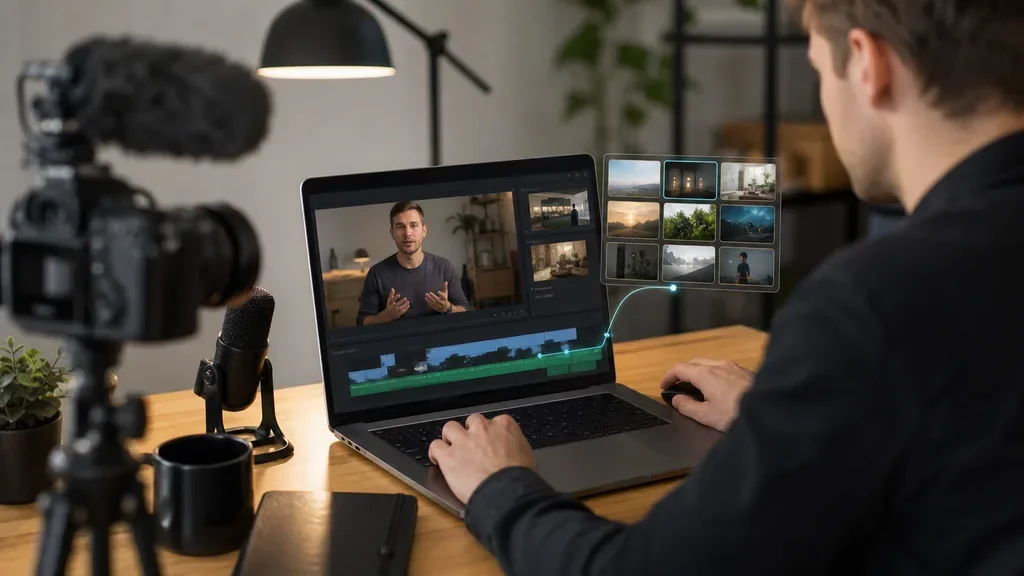
An ai b roll generator for youtube videos can speed up editing, but it can also make a solid video feel fake if you accept every suggestion. Treat the tool like a rough assistant: useful for finding visual options, risky when it decides meaning for you.
Good B-roll supports the point the viewer is hearing right now. Bad B-roll looks busy, mismatches the claim, or distracts from the person on camera.
| What you see | Likely cause | First move |
|---|---|---|
| Clips look polished but random | The tool matched keywords, not intent | Rewrite prompts around the scene's job |
| B-roll repeats the same visual idea | The transcript has vague terms | Add specific nouns, settings, and actions |
| Viewer trust feels shaky | Realistic AI footage implies something happened | Swap to stock, abstract visuals, or disclose |
| The edit feels slower | Clips are too long or too decorative | Cut B-roll on the sentence beat |
What a YouTube B-Roll Generator Should Do
Start with fit, not novelty. A useful generator should read the transcript, understand the surrounding claim, and suggest visuals that explain the idea without fighting the voiceover.
Some tools pitch automatic B-roll as a one-click shortcut. That is fine for a first pass, but you still need control over replacement clips, timing, source rights, and whether the footage is stock, generated, or pulled from an existing library.
Use the Tool Where It Saves Real Editing Time
B-roll automation works best on predictable gaps: product cutaways, abstract concepts, location mood shots, screen breaks, and repeated talking-head sections where the viewer needs a visual reset. It works less well for precise claims, demos, safety topics, legal points, or anything that needs factual proof on screen.
For creator workflows, the sweet spot is usually the rough assembly stage. Let the AI propose ten visual ideas, reject six, replace two, trim one, and keep the last one because it actually makes the sentence clearer.
If you are already turning long videos into Shorts, pair this workflow with an AI Shorts generator from long video process so the vertical edit does not lose context. B-roll that works in a 12-minute YouTube video may feel too slow in a 35-second clip.
How to Judge Clip Quality Before Publishing
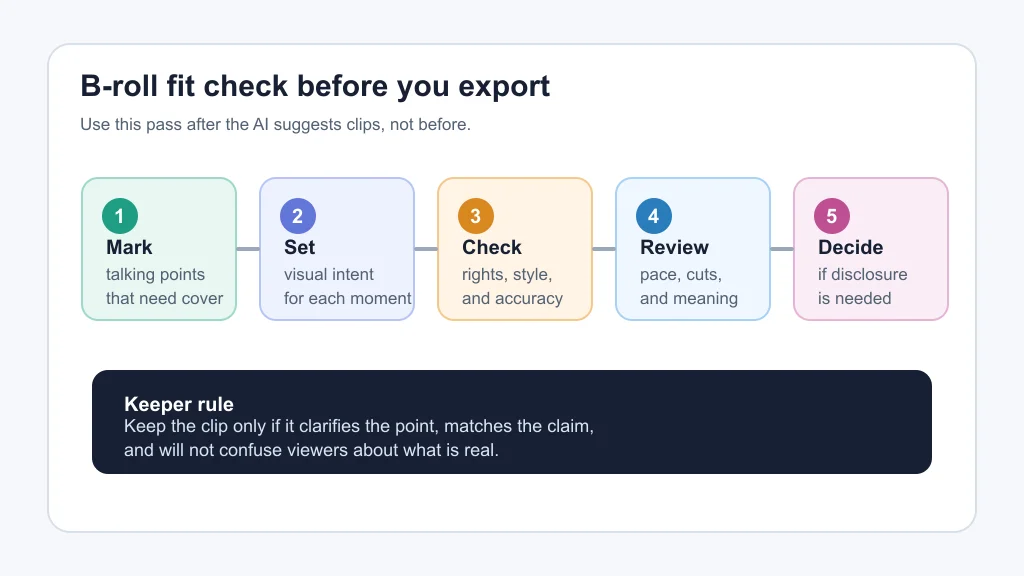
Ask one blunt question: would this visual help if the viewer muted the video for two seconds? If the answer is no, the clip is probably decoration.
Look for three kinds of fit. The clip should match the spoken point, match the tone of the channel, and match the viewer's expectation of what is real. That last piece matters more now because AI video can look convincing even when it is invented.
For example, generated shots of a generic desk, calendar, or glowing idea board are usually low-risk when they are clearly illustrative. A realistic clip of a named city, a medical scene, a public figure, or a specific incident needs much stricter review.
Tool Features That Matter More Than the Demo
Skip the feature list for a minute and test the workflow. Can you replace a bad suggestion quickly? Can you see whether the asset is generated or stock? Can you edit clip length without fighting the tool?
For YouTube creators, the practical buying criteria are simple:
- Transcript awareness: The tool should understand full sentences, not just isolated keywords.
- Rights clarity: You need to know how generated, stock, or licensed clips can be used commercially.
- Editor handoff: Exports should fit your editor, whether you use CapCut, Descript, Premiere Pro, Final Cut Pro, or a browser editor.
- Style controls: Prompts, negative prompts, and visual presets help your channel feel consistent.
- Disclosure support: The tool should make it easy to identify generated realistic footage later.
Creator tools overlap, so compare based on the job you need done. If the edit itself is the bottleneck, read our AI video editing tools for YouTube creators guide. If thumbnails are the bigger issue, compare AI thumbnail tools for YouTube creators and the more focused AI thumbnail generator for YouTube workflow.
Stock, Generated, or Channel-Owned Footage?
Stock footage is usually safest when the video needs real-world specificity. Generated footage is useful when you need an illustrative scene that does not claim to document reality. Channel-owned B-roll, like your own desk, product, event, or behind-the-scenes clips, is still the trust winner when you have it.
Mixing all three can work well. Use your own footage for proof, stock for real places or objects you cannot film, and generated B-roll for transitions, metaphors, and simple atmosphere.
For image-heavy workflows, the same rights logic applies. Our AI image generator for creators guide walks through rights, style, and repeatability, which are the same questions you should ask before dropping AI visuals into a video timeline.
Suggested Workflow for a Talking-Head Video
- Export or paste the transcript into your B-roll tool.
- Mark moments where the viewer needs proof, relief, context, or pace.
- Prompt for the visual job, not just the noun. Use phrases like "show the editing decision" or "visualize audience retention dropping."
- Reject clips that imply a real event, person, or place unless you can verify the source or disclose properly.
- Cut B-roll short. Let the speaker's face return before the viewer forgets who is talking.
- Watch the final edit once with captions on and once with audio only. The B-roll should support both passes.
Script quality still drives the edit. If your voiceover wanders, no B-roll tool can fully fix it. Tighten the outline first with an AI script generator for YouTube videos, then add visuals after the argument is clear.
Where B-Roll Fits in a Creator AI Stack
B-roll is one layer, not the whole system. A practical YouTube stack might use scripting, clipping, captions, thumbnails, voice cleanup, and publishing checklists around the editor.
That is why tool choice depends on your channel type. A tutorial channel needs screen inserts and accurate UI moments. A commentary channel needs pace breaks and contextual images. A faceless channel may need voice, visuals, captions, and thumbnails to carry the whole experience.
For related workflow choices, compare the best AI tools for YouTube creators, CapCut vs Descript, and Descript alternatives for creators. If you publish beyond YouTube, connect the same planning habits to Instagram Reels captions, newsletter creator workflows, and free AI tools for content creators.
Quick Checklist
- Use the exact spoken point as the starting cue for each B-roll suggestion.
- Prefer real or stock footage for factual claims about places, people, or events.
- Keep generated B-roll short unless it is clearly illustrative.
- Check commercial-use rights before using a clip in monetized videos.
- Review realistic AI footage against YouTube disclosure rules.
- Replace any clip that looks impressive but weakens trust.
- Save your best prompts so the channel develops a steady visual language.
Related Guides for the Same Production Stack
Need the rest of the workflow? Pair B-roll decisions with AI voice tools for YouTube creators and ElevenLabs alternatives for YouTube when narration is part of the edit.
Official sources: Gling B-Roll Generator · YouTube GenAI disclosure guidance.
Frequently Asked Questions
what is the best ai b roll generator for youtube videos?
The best choice depends on your edit style. Look for transcript awareness, rights clarity, easy replacement controls, and export settings that fit your editor.
can ai add b-roll to a youtube video automatically?
Yes, some tools can suggest or insert B-roll automatically. You should still review every clip for meaning, pacing, rights, and disclosure risk.
is ai generated b-roll safe for youtube monetization?
AI B-roll is not automatically unsafe, but realistic generated scenes may need YouTube disclosure. Rights and reuse terms also matter.
should i use stock b-roll or ai b-roll for youtube?
Use stock footage when you need real-world accuracy. Use AI B-roll when you need abstract support, simple transitions, or visuals that stock libraries do not cover well.
how much b-roll should a youtube video have?
Use enough to clarify the idea and keep pace moving. Too much B-roll can make a talking-head video feel disconnected from the speaker.
Used well, AI B-roll is less about replacing an editor and more about removing the blank-page problem between spoken ideas. Let the software suggest options, but keep the final judgment human: does this clip make the video clearer, faster, and more trustworthy?